

Published date:
Last updated:
iPhone screen mirroring
This page contains the user manual for alfacast application. This complete instruction is useful for people who want to learn how to use alfacast screen mirror app on iOS. To use iPhone screen mirroring feature with alfacast app, you need one or more of the following devices: iPhone, iPad, iPod. Your device must have Apple iOS operating system installed.
Alfacast is a screen mirroring app with streaming and viewing features. For the best understanding of this user manual, whenever the iPhone screen mirroring feature is mentioned, it means alfacast app is used to mirror the screen on your iOS device. You can find more detailed info about alfacast app on Home page. In this user manual we will show you how to use the application and tell you about its main functions.
Main app features
Our iPhone screen mirroring solution is available in two versions. There are two separate versions of alfacast application: regular (alfacast) and extended (alfacast x). Below is a list of the app’s main features:
• Audio and video stream splitter for simultaneous real time streaming of content to multiple devices (up to 8 channels).
• Streaming through all network interface types: Wi-Fi, Ethernet, Bluetooth.
• Screen streamer and viewer within local area network.
• Serverless single channel peer-to-peer streaming technology.
• Serverless multichannel peer-to-many streaming technology.
• Low latency playback. This feature is only available in the extended version of the app.
• Video streamer & viewer up to SD quality and 30 FPS in the regular app version.
• Video streamer & viewer up to 4K Ultra HD quality and 60 FPS in the extended app version.
• Automatic discovery of users on the local network.
• Secure connection with end-to-end AES-128 encryption technology in the regular app version.
• More secure connection with end-to-end AES-256 encryption technology in the extended app version.
The extended version of the application differs from the regular version by its more advanced functionality and capabilities. Everything described here applies to both versions of the application (regular and extended), unless the different behavior of the two versions is explicitly described. More detailed information about the differences between the two versions of the app will be provided later in this user guide.
System requirements
Please note, alfacast app has some requirements to use the iPhone screen mirroring feature:
• Apple iOS operating system with minimum version 14.0.
• Minimum RAM size: 1 GB. Recommended RAM size: 6 GB.
• Minimum CPU: 1.5 GHz dual-core. Recommended CPU: 2.5 GHz hexa-core.
• Minimum display resolution 1136×640 pixels.
• Maximum streaming resolution up to 4K Ultra HD – 3840×2160@60 Hz (supported by streaming technology). The practical resolution is limited to 2560×1280@60 Hz, please find more info below.
• Minimum 100 Mbps router. Recommended 1 Gbps 5 GHz Wi-Fi router.
• Supported CPU architectures: ARM64.
• Minimum 50 MB disk space.
• Support IPv4 networks only.
• The devices should be connected to the same network.
• The operating system must support the following video codecs: H.264, H.265, VP8, VP9 (hardware accelerated or software).
4K Ultra HD resolution and 60 FPS requirements
Please check the following points to ensure proper support for 4K Ultra HD iPhone screen mirroring on your devices:
• Extended version of application on streamer and viewer side.
• Display with 4K Ultra HD resolution and 60 Hz on streamer side. Please note: iOS devices do not have a large display with 4K Ultra HD resolution. Because Apple ReplayKit has a RAM limit of 50 MB, the practical resolution on streamer side is limited to 2560×1280 (or similar area resolution). Theoretically, 4K Ultra HD broadcasting is supported by streaming technology.
• Hardware accelerated H.264, H.265, VP8, VP9 video codec with 4K Ultra HD support.
• The final video stream resolution and refresh rate depends from the maximum resolution and refresh rate of streamer’s display, current video codec configuration and network bandwidth.
The application supports
For a better understanding, we provide the following list of features that our application supports:
• Streaming audio and video from your screen.
• Playback audio and video on the side of the viewer.
• Screen streamer and viewer in one application.
• Audio and video splitter for simultaneously streaming screen content to multiple devices in real time.
• Secure connection with end-to-end encryption.
• Display current streaming information.
• Automatic users discovery in the local area network.
• iPhone screen mirroring with a local network connection only.
The application does not support
To avoid any misunderstandings, we provide the following list of what our application does not support:
• Alfacast is not DLNA™, UPnP™ media render or media server.
• Alfacast is not Apple AirPlay™ receiver or transmitter.
• Alfacast is not Google Chromecast™ receiver or transmitter.
• Alfacast is not Miracast™ receiver or transmitter.
Alfacast is an independent iPhone screen mirroring application based on proprietary streaming technology. As a result, the user has to install alfacast app on both sides: on the streamer and on the viewer devices.
Installing and uninstalling the app
As we mentioned earlier, our iPhone screen mirroring solution is available in two separate app versions. You can find current links to the application on our Downloads page.

Figure 1. Alfacast application icons for iOS.
The regular (left) and extended (right) versions
Figure 1 shows two app icons. On the left is the icon for the regular version of the “alfacast” app. On the right is the icon for the extended version of the “alfacast x” app. The application is available in the standard Applications list on your iOS device immediately after successful installation.
The application is removed in the usual manner for an iOS device. Press and hold the application icon for about two-three seconds. After this, iOS will display a pop-up menu, select Remove App.
App permissions
At launch, the application requests permission to search for devices on the local network and to send notifications. The iPhone screen mirroring function is not possible without permission to search for devices within the local network, please grant this permission. We recommend that you also grant the app permission to send notifications. Later in this user manual, we will examine in more detail all requests for access to the required permissions.
Launching the application
Please tap on the application icon from the Applications list and launch it. On launch the application, it will initialize and you will see the window shown in the following figure.

Figure 2. Application splash screen window
After some time, the window will show the main controls. Main application window displays the streaming devices found on the local network in a special area, see the following figure.
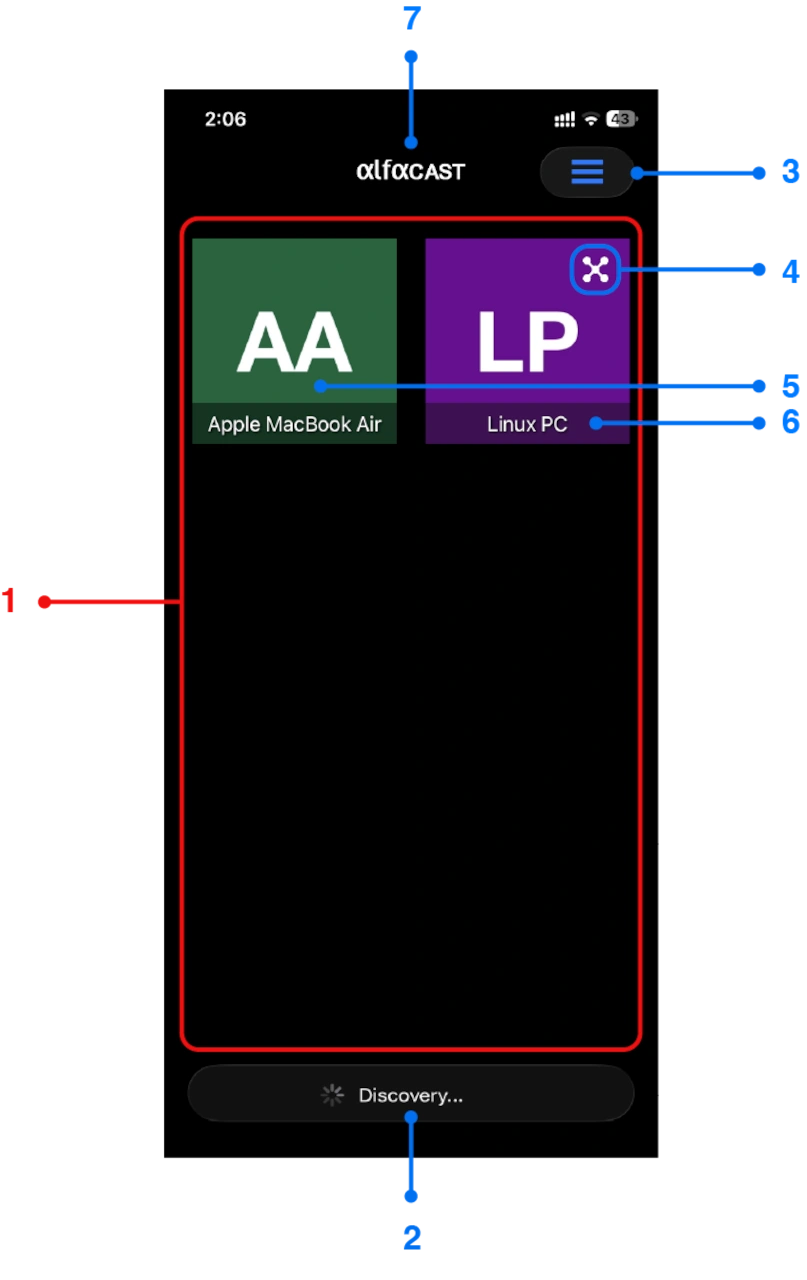
Figure 3. Main application window
The Main application window contains the following controls:
1 – Display area of discovered network nodes. List of network nodes with streamer functionality.
2 – Current status of the application with activity indicator. The values for this field can be:
• “Initializing…” – the application is in the initialization state.
• “Please wait…” – need to wait for some time.
• “No connection” – there is no network connection on your iOS device.
• “Discovery…” – the application is ready to work and is discovering all network nodes within the local network.
3 – Menu button. Show and hide menu.
4 – Multichannel streamer mode indicator. This indicator always appears on network nodes with enabled multichannel streaming mode.
5 – Network node icon with name – “Apple MacBook Air“.
6 – Network node icon with name – “Linux PC“.
7 – Letter logo for the application.
In this manual we will use the concept of a network node – this is a network host on which alfacast application is running. Alfacast is both a streaming and a viewing app. Accordingly, each network node may have either the streaming function, the viewing function, or both functions available. iOS based network nodes support both streaming and viewing functions to provide iPhone screen mirroring functionality.
Navigation in the application is carried out in the standard way, as on any device based on the iOS. The back button on iOS navigation bar is used to exit the current window.
After starting, the application immediately tries to detect all network interfaces and start the network node discovery process on each network interface. If no network interfaces are detected, you will see the corresponding application status – “No connection“. In this case, you should provide at least one network interface to start the network node discovery process. Please connect to the Wi-Fi router or use wired connection between router and your iOS device (using external network adapter). If the network interface is present, the application will change its status to – “Discovery…“. The “Discovery…” status means that network discovery is currently in progress. The discovery process is typically quick and takes no more than 30 seconds. For the application to work correctly, grant it permission to discover local network nodes.
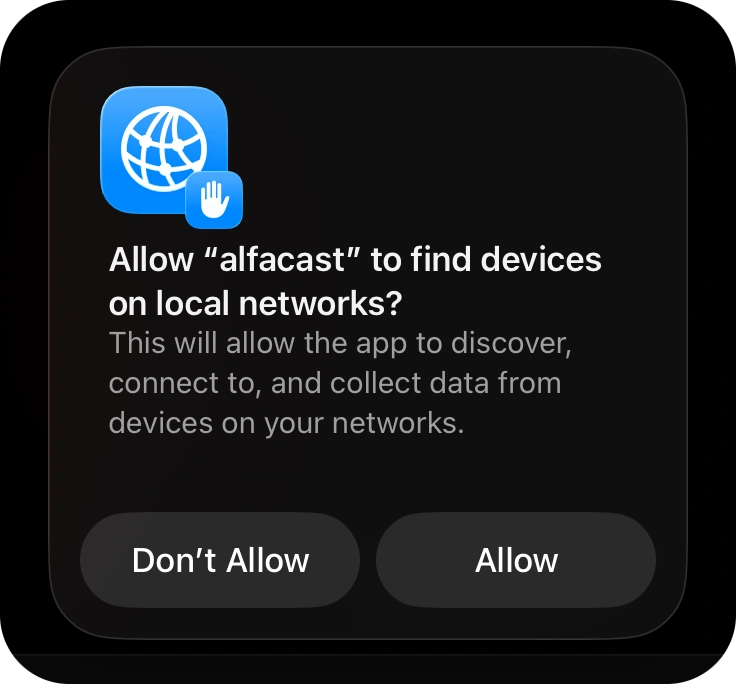
Figure 4. App requests discovery permissions
Please click on Allow button in the dialog. if you click Don’t Allow button, the app will not function properly and you will not be able to use the iPhone screen mirroring feature.
To display the application’s Main menu, click the Menu button. After clicking the Menu button, a list of menu items will appear on top of the Main application window, see the following image.
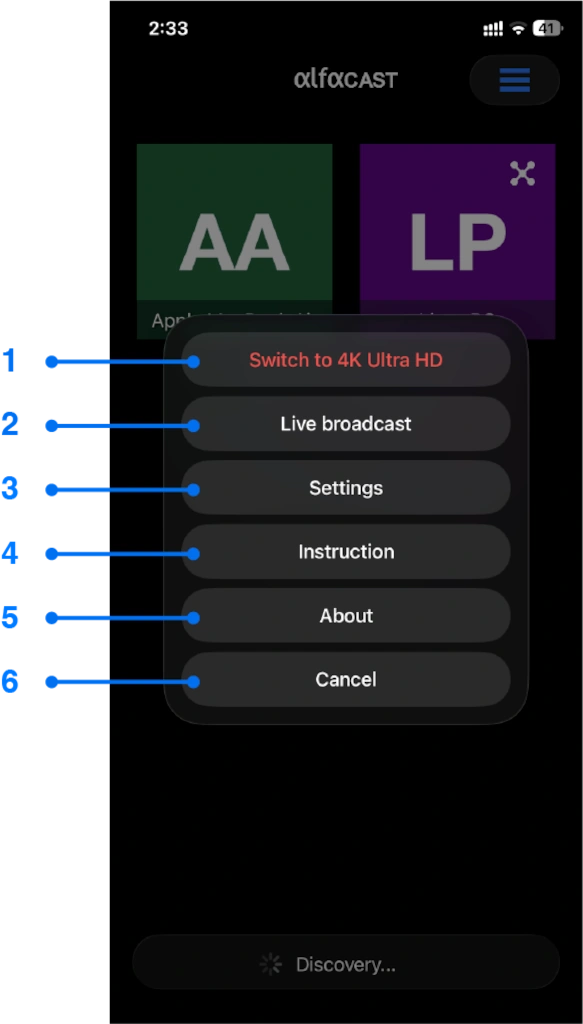
Figure 5. Main menu
The Main menu contains the following controls:
1 – 4K Ultra HD switch button. This button is used to review with the extended version of the application.
2 – Live broadcast button. The button switches the streamer to multichannel streaming mode.
3 – Settings button. The button opens a window with the application settings.
4 – Instruction button. The button opens a window with instructions for the application.
5 – About button. The button opens a window with information about the application.
6 – Cancel button. This button hides the Main menu.
The 4K Ultra HD switch button is a reminder that there is a more advanced, extended version of the app. This button is only available in the regular version of the app and is hidden in the extended version. Click this button to see options for switching to the extended version of the application.
The functionality of all buttons is discussed further, please see the following sections of this user manual. A description of how the Live broadcast button works can be found in the Screen streaming section of this manual.
For more information on how the Instruction button and About button works, please refer to the App instruction and About sections. The Settings button is described in the App settings section.
The display area of discovered network nodes will reflect all detected network nodes with steaming function. In simple terms, these are streamers on your local network. To start the iPhone screen mirroring process, you need to select a network node from this area. Click on any network node to start the playback process.
The Multichannel streamer mode indicator is displayed if the network node has enabled multichannel streaming mode. The multichannel streaming mode is described further in this user manual.
In addition to the current application status, there is a mini application status. This mini status is displayed at the bottom right corner of the Main application window, see the picture below.
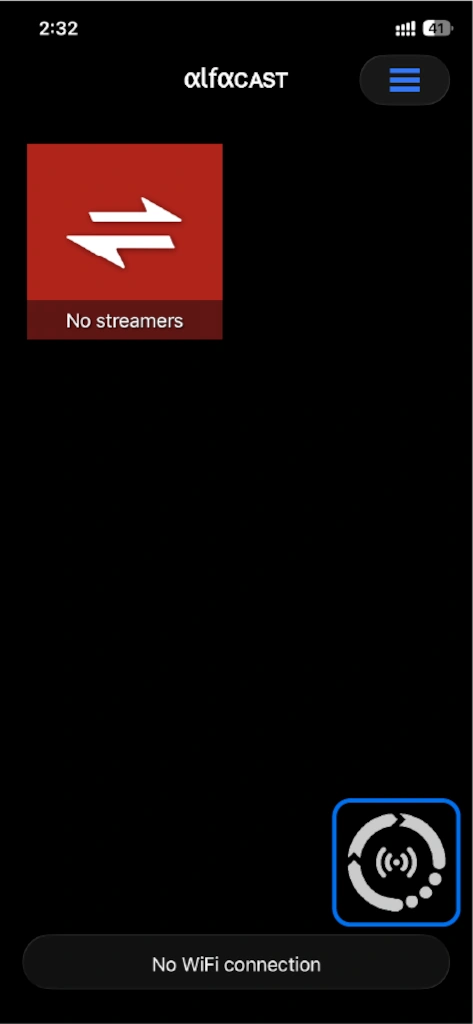
Figure 6. Mini status
The application’s mini status graphically explains what is currently happening, making it easier to understand the current status. Mini status is displayed in the following cases:
• The application is initializing.
• An operation is taking place that requires some time to wait.
• There is no network connection.
If you switch to another app or move the app to the background, the app will free up memory and move to the background. However, if you have broadcast mode enabled, broadcasting will remain active when the app moves to the background. Broadcast mode control is described later in this user manual.
Below we provide a description with the minimum set of steps to start streaming or viewing on your iOS device.
Steps for screen streaming
To start streaming your display with iPhone screen mirroring feature, please follow the steps below on your streaming device:
• Download alfacast application on your devices.
• Connect your devices to the same network.
• Run alfacast application on your devices.
• Select Live broadcast option from Main menu.
• Tap on Apple ReplayKit dot controller.
• Make sure the alfacast live (or alfacast x live) extension is selected in the list.
• Tap on Start Broadcast button for start streaming.
• Now you are ready to accept incoming connection.
Steps for screen viewing
To start viewing remote display with iPhone screen mirroring feature, please follow the steps below on your viewing device:
• Download alfacast application on your devices.
• Connect your devices to the same network.
• Run alfacast application on your devices.
• Wait end of the discovery process (approximately 15-30 seconds).
• Select the required streamer from the list and wait end of the connection process.
• Now you will view remote screen.
App notifications
The application will generate notifications while it is running. App notifications are important, and we recommend leaving them enabled. In the following figure you can see an example of a notification from alfacast application on iOS.
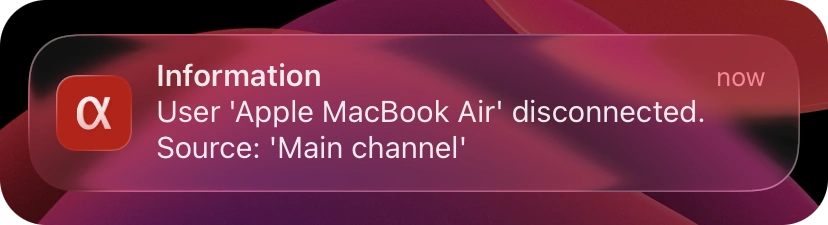
Figure 7. App notifications
The app includes a built-in extension for streaming function. This extension also sends notifications to the user. The built-in extension is described later in this guide. In the following figure you can see an example of a notification from broadcast extension on iOS.
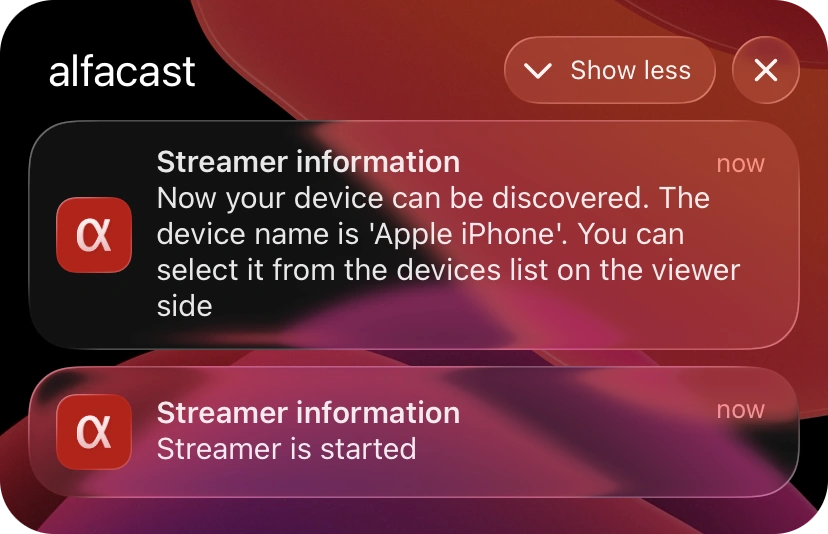
Figure 8. Broadcast extension notifications
The app and broadcast extension will send notifications every time the user connects or disconnects, as well as informational, warning, error, and other messages. At launch, the application will ask you for permission to send notifications.
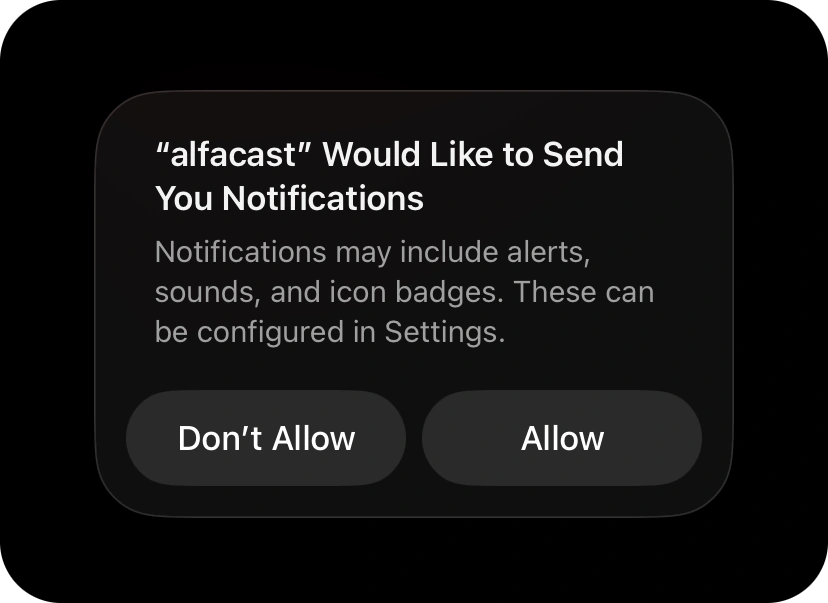
Figure 9. App requests notification permissions
Please click the Allow button to receive notifications from the application. If you do not want to receive notifications related to iPhone screen mirroring, click the Don’t allow button.
Screen streaming
All iOS based network nodes already have the streamer feature. The broadcasting function is performed by the extension, and the application itself is used to view the content. The iPhone screen mirroring streamer feature is implemented inside broadcast extension, this extension is built into the application and is installed simultaneously with the application.
iPhone screen mirroring can be single channel or multichannel. The multichannel streaming feature allows you to broadcast content from your iOS device to multiple devices simultaneously in real time. This function splits audio and video signals and transmits content from the device screen to multiple devices. The type of viewing device does not matter and it can be: a Mac, a Windows PC or Linux PC, an iPhone, an Apple TV, an Android device, etc. Multichannel streaming for iOS is available by subscription.
To start broadcasting, you need to launch the application and select the Live broadcast option in the Main menu of the application. In the Live broadcast window, the app contains an Apple ReplayKit controller, which appears as a black dot.
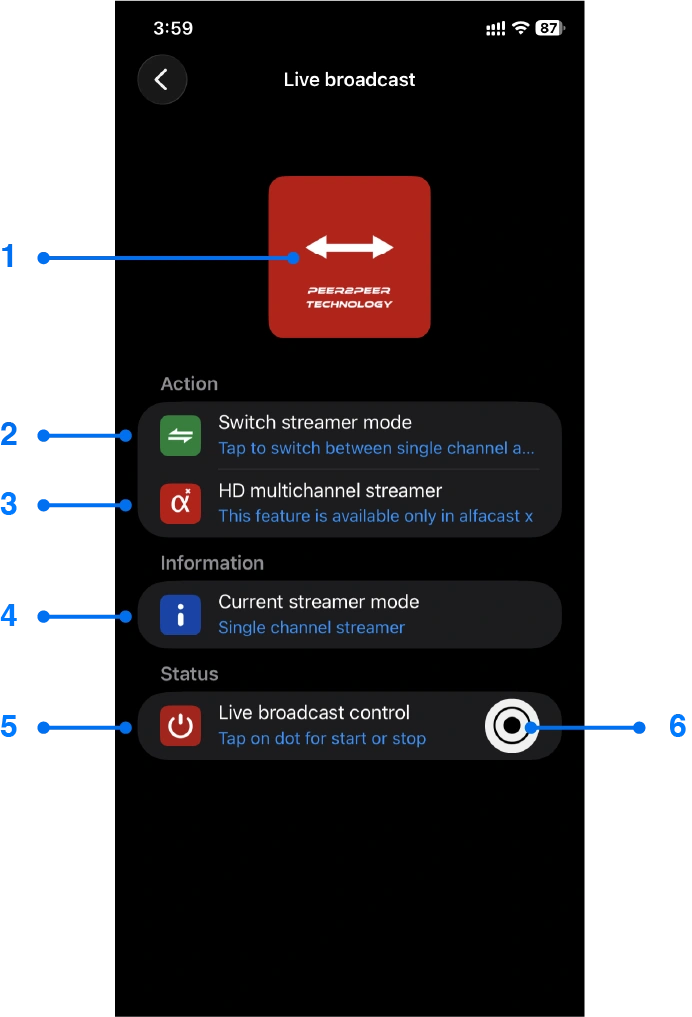
Figure 10. Live broadcast window
The Live broadcast window contains the following controls:
1 – Broadcast mode switch button. Click this button to change the streamer’s broadcast mode.
2 – Switch streamer mode button. Click this button to change the streamer’s broadcast mode.
3 – HD multichannel streamer button is a reminder that there is a more advanced, extended version of the app. This button is only available in the regular version of the app and is hidden in the extended version. Click this button to see options for switching to the extended version of the application.
4 – Current streamer mode button. Description of the selected broadcast mode.
5 – Live broadcast control button. Instructions for starting and stopping streaming.
6 – Apple ReplayKit dot controller. Click this control to start broadcasting.
The actions of buttons Broadcast mode switch button and Switch streamer mode button are the same, they act as a broadcast mode switch. Click on any of these buttons to select a broadcast mode from the pop-up menu, see the following figure.
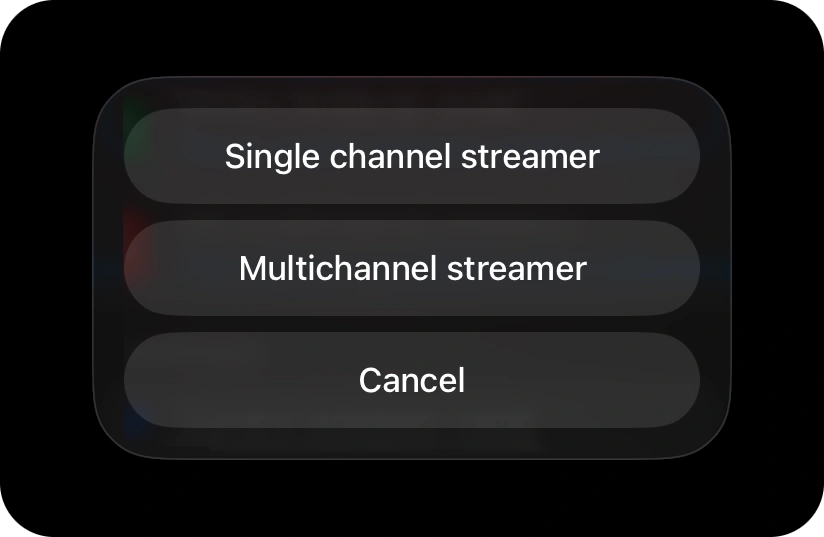
Figure 11. Broadcast mode selection menu
The Single channel streamer button switches the streamer’s broadcast mode to single channel mode. The Multichannel streamer button switches the streamer’s broadcast mode to multichannel mode. The Cancel button closes the menu. Select the broadcast mode you need from the menu items.
Each time you select a new streaming mode, the app updates its description under the Current streamer mode button. Click on the Current streamer mode button to see full information about the current streaming mode in a separate dialog box.
To start the broadcasting process, you need to click on the black dot (Apple ReplayKit dot controller). After clicking, the application creates a system dialog with a selection list (or a list with one item) of extensions for broadcasting. You need to make sure that the correct extension is selected: alfacast live or alfacast x live. After this, you need to click on the Start Broadcast button in the dialog.
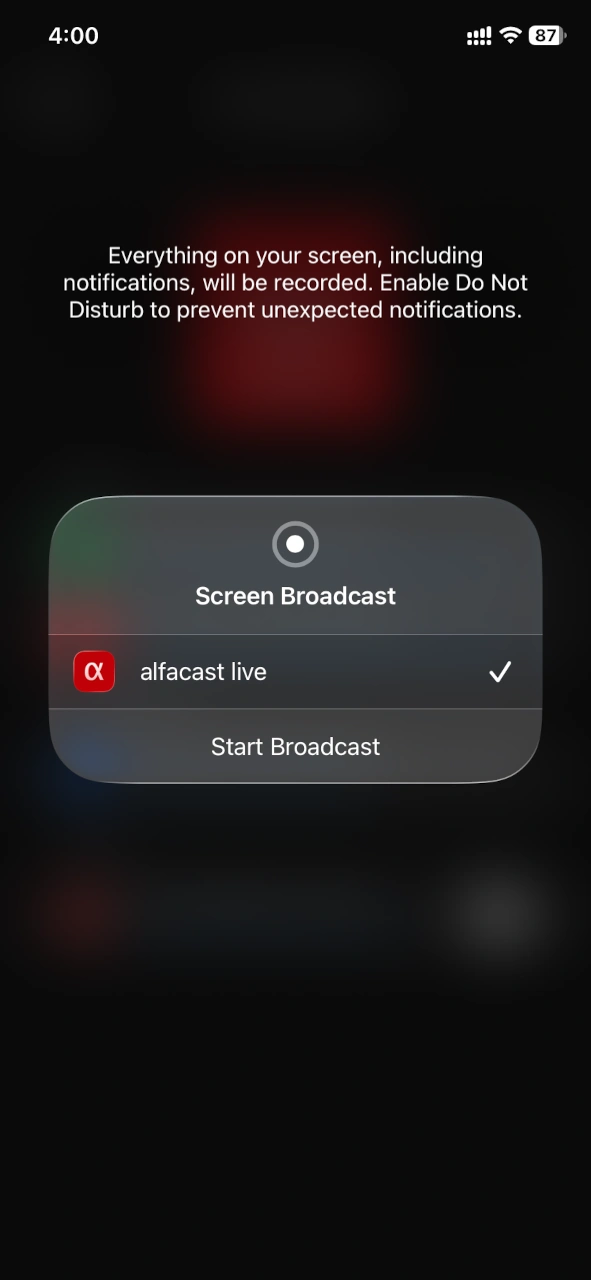
Figure 12. iOS Screen Broadcast dialog
Once broadcasting starts, Apple ReplayKit will change its color from black to red. Also, the Start Broadcast button will change its name to Stop Broadcast. To stop broadcasting, click the Stop Broadcast button or simply lock your device. Please note: various iOS applications and built-in OS tools allow you to launch various broadcasting extensions and you can use these tools, but we recommend that you use our application to control the broadcast mode.
Please remember that once the broadcast starts, the video image will be captured entirely from the screen of your device. Along with screen capture, the application also captures system sound (if this option is enabled in the application).
All incoming connections and disconnections are notified.
Screen viewing
To start viewing content from a remote screen, you have to select a network node in the Main application window. After selecting a network node please tap on it, a Playback window will open, see below.
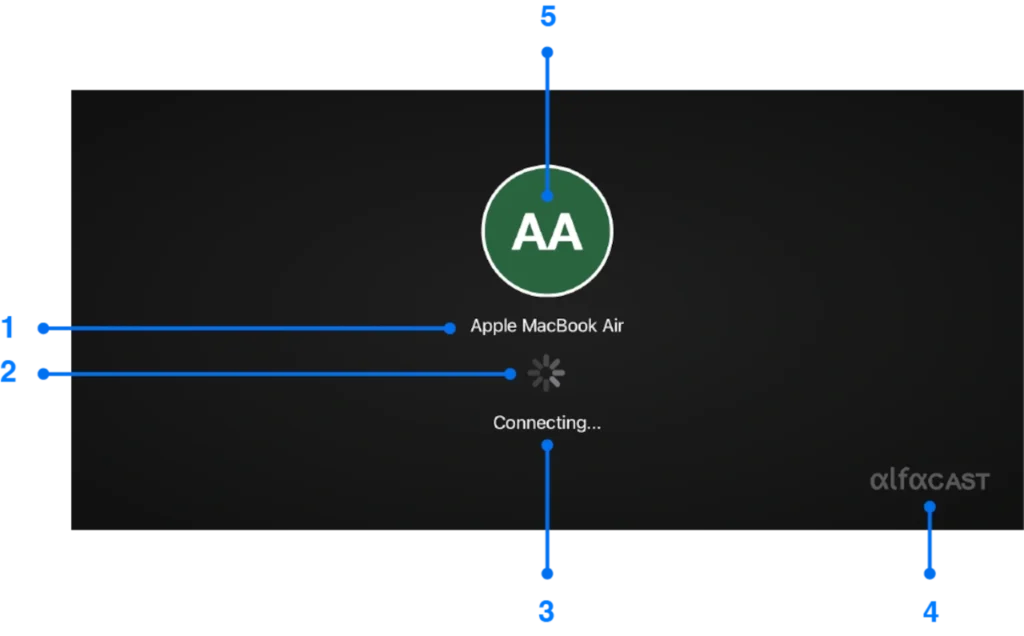
Figure 13. Playback window
At the connection stage, the Playback window contains the following elements:
1 – Network node name. Remote host alfaname or user name.
2 – Activity indicator.
3 – Current connection status. The values for this field can be:
• “Connecting…” – the process of connecting to a network node is in progress.
• “Buffering…” – the data buffering process is in progress.
• “Disconnecting…” – the process of disconnecting is in progress.
• “Reconnecting…” – the process of reconnecting is in progress.
4 – Letter logo for the application.
5 – Network node avatar image.
We have shown above the appearance of the Playback window before the content playback process starts. All of the above elements are static and serve to display the current state of the connection. If the connection cannot be established within one minute, the playback window closes automatically. If an error occurs at the start of a connection or when viewing a video stream, the app will automatically attempt to reconnect. If the connection is successfully established, controls will become available in the Playback window, see below.
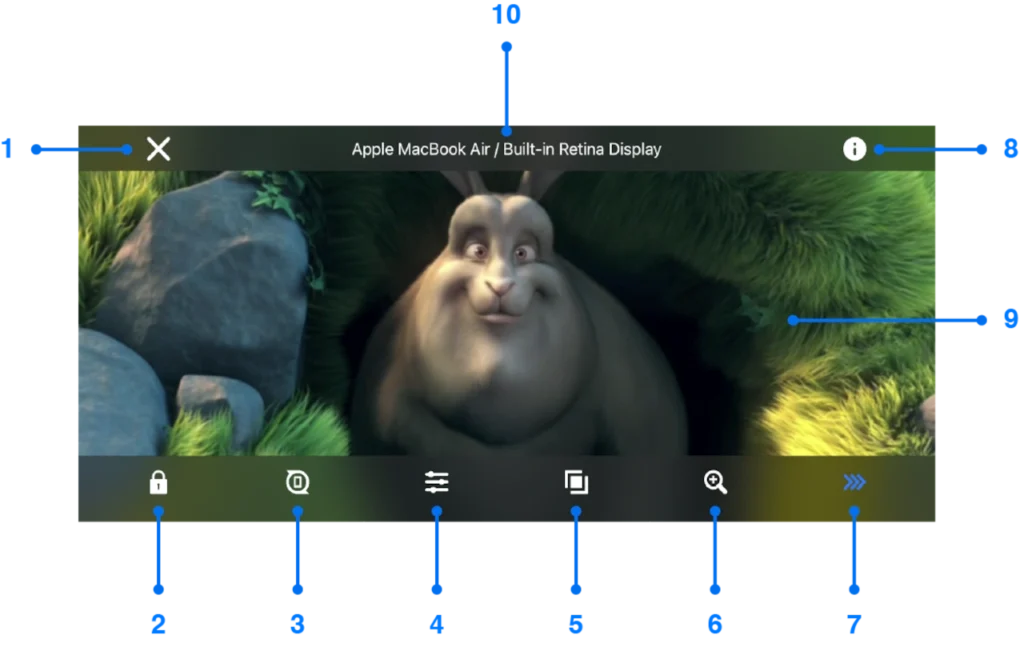
Figure 14. Playback window after successful connection
At the playback stage, the Playback window contains the following controls:
1 – Close button. The button terminates the outgoing connection.
2 – Screen lock button. This button locks the on-screen controls.
3 – Rotation lock button. This button blocks the video image from flipping when the device is rotated.
4 – Picture button. Video image adjustment button. Clicking this button opens a window with elements for adjusting the video image.
5 – Aspect ratio button. The video aspect ratio value changes after each press in a circle. Video aspect ratio values can be as follows:
• “Default” – do not change the video aspect ratio, use the same aspect ratio as on the remote screen.
• “Stretch” – the video aspect ratio will be the same as the aspect ratio of the Playback window.
• “16:9” – video aspect ratio 16:9.
• “16:10” – video aspect ratio 16:10.
• “21:9” – video aspect ratio 21:9.
• “1:1” – video aspect ratio 1:1.
• “2:1” – video aspect ratio 2:1.
• “4:3” – video aspect ratio 4:3.
• “5:4” – video aspect ratio 5:4.
• “3:2” – video aspect ratio 3:2.
6 – Scale button. The video scale value changes after each press in a circle. Video scale values can be as follows:
• “No scale” – do not scale the video image.
• “Crop” – an automatic video image cropping mode. It crops the video image based on the window size and aspect ratio of the original video frame: horizontally or vertically.
• “Horizontal” – crops the video image horizontally.
• “Vertical” – crops the video image vertically.
• “100 %” – 100 percent of the original video image.
• “125 %” – 125 percent of the original video image.
• “150 %” – 150 percent of the original video image.
• “200 %” – 200 percent of the original video image.
• “250 %” – 250 percent of the original video image.
• “300 %” – 300 percent of the original video image.
• “400 %” – 400 percent of the original video image.
• “25 %” – 25 percent of the original video image.
• “50 %” – 50 percent of the original video image.
• “75 %” – 75 percent of the original video image.
7 – Get low latency button. This button is used to review with the extended version of the application.
8 – Information button. Click by this button to open a window with information about the current stream.
9 – Content from a remote screen. Playing video content is the main purpose of the Playback window.
10 – Network node name and remote screen source name.
To finish the current playback session, simply click the Close button, this will automatically disconnect you from the streamer.
To ensure a comfortable viewing experience when you use the iPhone screen mirroring feature, we provide the following additional controls in the Playback window.
You can lock all controls on the Playback window by clicking the Screen lock button. After this, only one Unlock button will be available in the center of the Playback window. To fully restore controls in the Playback window, click the Unlock button.
If your iOS device supports the ability to rotate the graphical interface based on the device’s orientation, the video image will automatically rotate as the device rotates. Click the Rotation lock button to keep the image in its current orientation. This button allows you to control the orientation of the video image manually – as you need. To return to automatic mode, press this button again.
The Picture button shows additional elements where you can adjust the video image by: brightness, contrast, saturation or hue. Click on this button and the application will show additional elements as shown in the image below.
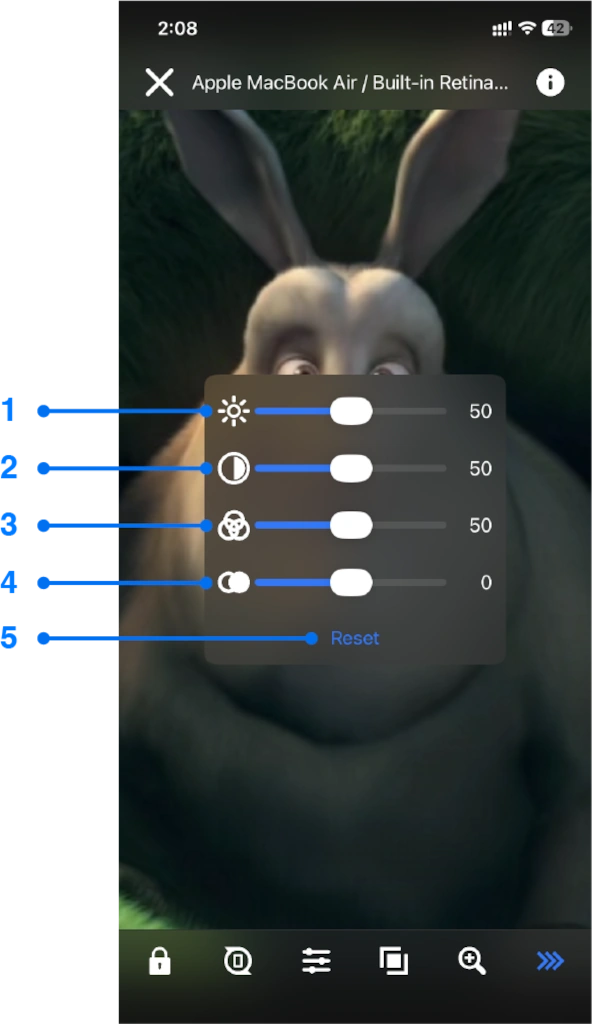
Figure 15. Picture adjustments elements
The Picture adjustments elements contain the following components:
1 – Slider for setting the brightness of the video image and the current brightness value.
2 – Slider for setting the contrast of the video image and the current contrast value.
3 – Slider for setting the saturation of the video image and the current saturation value.
4 – Slider for setting the hue of the video image and the current hue value.
5 – Reset button. Reset all video image settings to default values.
You can adjust the video image levels using the sliders. Video picture settings are saved and applied to subsequent playback sessions. To return video picture settings to default values, click the Reset button.
Click the Aspect ratio button to give the video image the shape you need. The Aspect ratio button changes the aspect ratio of the currently playing video frame. To understand how it works, try using it: click several times and you will see the effect on the displayed video image.
To scale the video frame image, use the Scale button. This button allows you to zoom in, zoom out or crop the video image. Similarly, to understand how it works, try using it: click several times and you will see the effect on the displayed video image.
The settings for these two values (scale and aspect ratio) are not stored and are set to default when starting a new video playback session.
The Get low latency button is only available in the regular version of the app and is hidden in the extended version. Click this button to see options for switching to the extended version of the application.
To view current information about a stream, click the Information button. Click on this button and the application will show additional elements as shown in the image below.
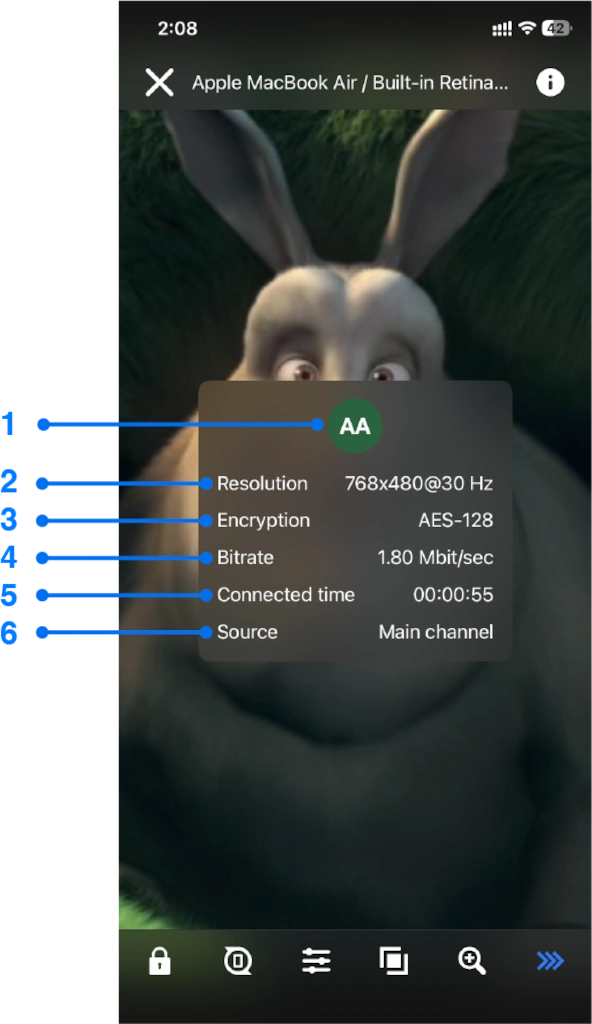
Figure 16. Stream information elements
The Stream information elements contain the following components:
1 – Network node avatar image.
2 – Current video stream resolution.
3 – Current encryption method.
4 – Current bitrate of the stream.
5 – Current connection time.
6 – Currently selected channel.
The Stream information elements display all the necessary information about the stream. These are: current video resolution, current bitrate, encryption method, connection time and source. This information is updated once per second.
If the streamer is in single channel mode, the main channel is selected for connection. If the streamer is in multichannel mode, you will be prompted to select a channel at the connection establishment stage, see the next window.
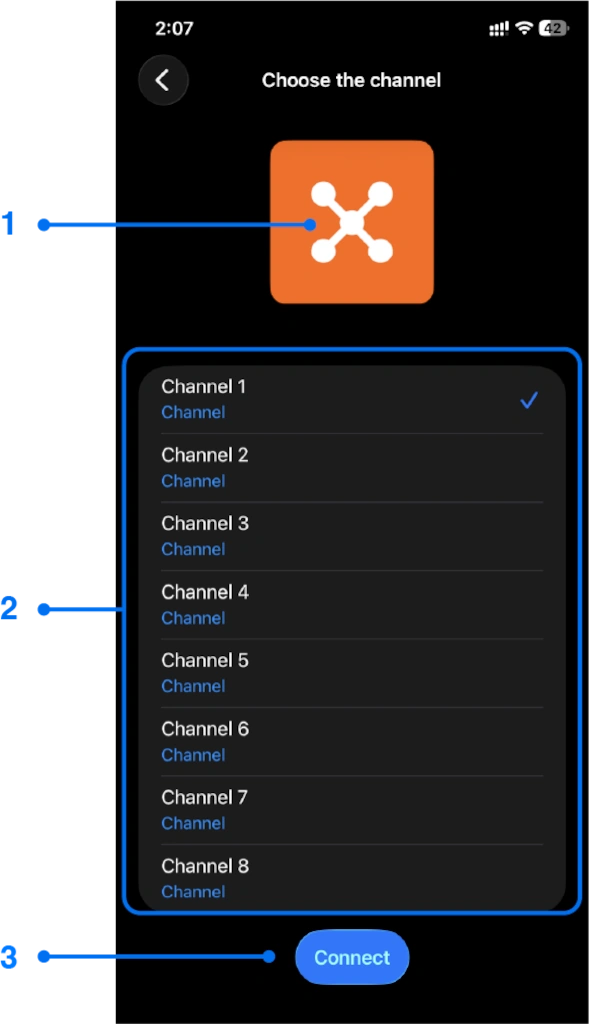
Figure 17. Channels list window
The Channels list window contains the following controls:
1 – Reset selection button.
2 – List of channels to select.
3 – Connect button.
First, select the channel you need in the list. Then click the Connect button. After this, the connection with your streamer begins in the same way as described earlier. If you want to reset your channel selection, click the Reset selection button. If you want to cancel the connection, simply press back button on the navigation bar.
App instruction
There is a built-in instruction in the app. It is a short guide to understanding how to use the app. This instruction describes how to use iPhone screen mirroring feature, including the basic steps to start streaming and viewing content from a remote screen. To display the Instruction window, press Instruction button in the Main menu or press on network node icon with “No streamers” label.
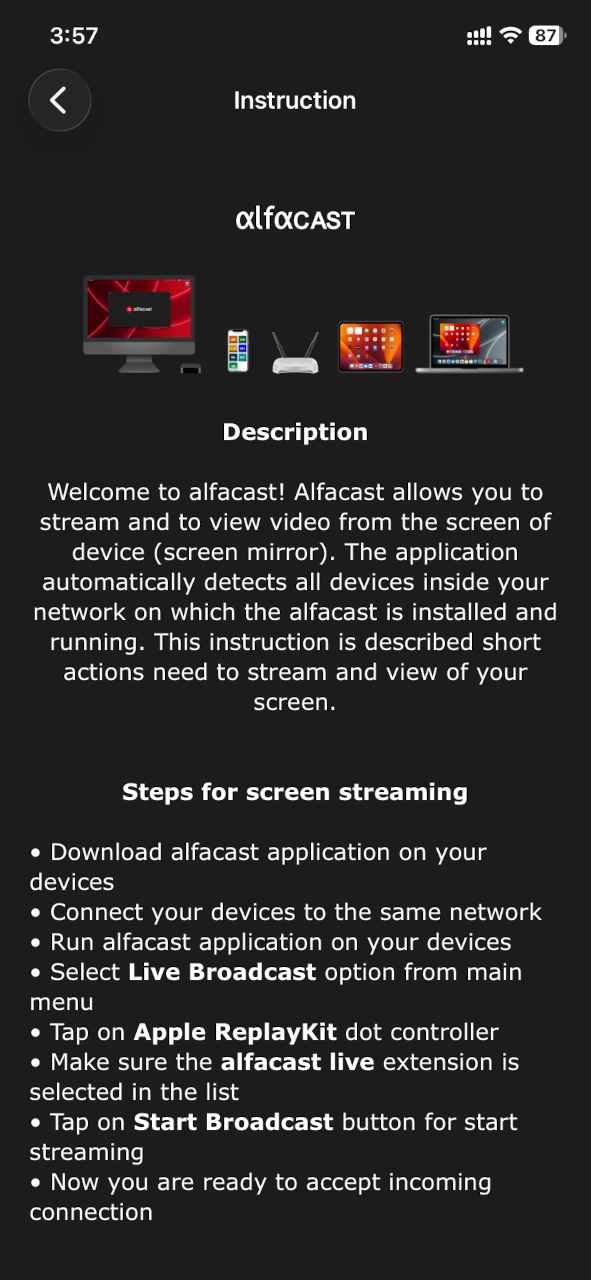
Figure 18. Instruction window
Please read the instruction before using the application. This instruction will cover some of the issues on using the iPhone screen mirroring feature and how to fix them.
App settings
Today it is difficult to imagine the iPhone screen mirroring function without settings. To fine-tune the application to your needs, use the Settings window. Click the Settings button in the Main menu to open the window. The Settings window contains several sections: general, streamer and viewer. General section – general application settings, these are the basic settings of the application. Streamer section – streamer application settings. Viewer section – viewer application settings.
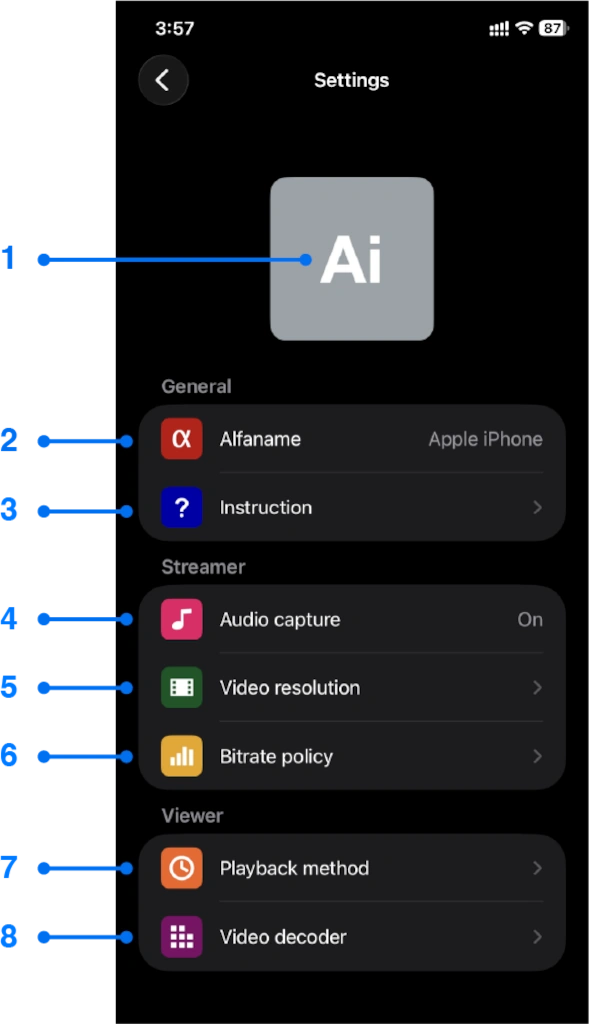
Figure 19. Settings window
The Settings window contains the following elements:
1 – Current Avatar picture. Click on the avatar image to change it.
2 – Current alfaname. This option is used to select the name of your network node.
3 – Instruction option. This option displays the instruction built into the application.
4 – Audio capture option. This option enables or disables audio capture in the application.
5 – Video resolution option. This option provides list of supported resolutions for video display.
6 – Bitrate policy option. This option provides list of network bitrate policies.
7 – Playback method option. This option sets the delay time during playback.
8 – Video decoder option. List of video decoders for user selection.
The procedure for working with the Settings window is simple: please select the option you need, after that app will show separate window for the option, then change the value of desired option, and click the Done button to apply changes. If you do not want to save the currently selected option value, simply press the back button on your device. The top icon of each window is an image button and when clicked, displays the Settings default menu.
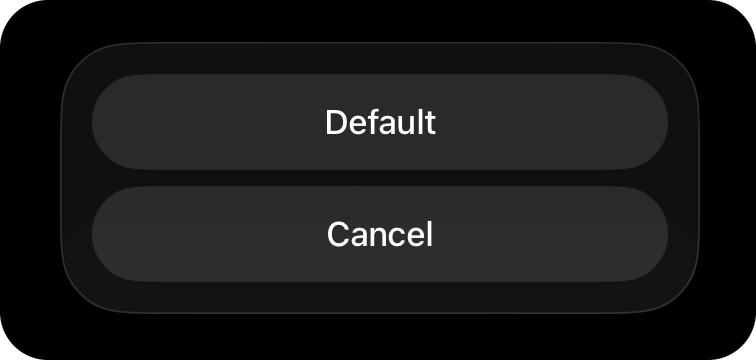
Figure 20. Settings default menu
The Default button resets option to default value without applying. Use the Default button if you are confused about the current application settings or if you have selected the wrong option and want to undo it. The Cancel button closes this menu.
An avatar image is an icon of your network node. This icon is displayed on the viewing device in the Main application window (the area of detected devices). In fact, this icon symbolizes your network node or iOS device, it is used to better perceive the different network nodes by the user. Click on the current Avatar picture, and the app will display the following Settings avatar menu.
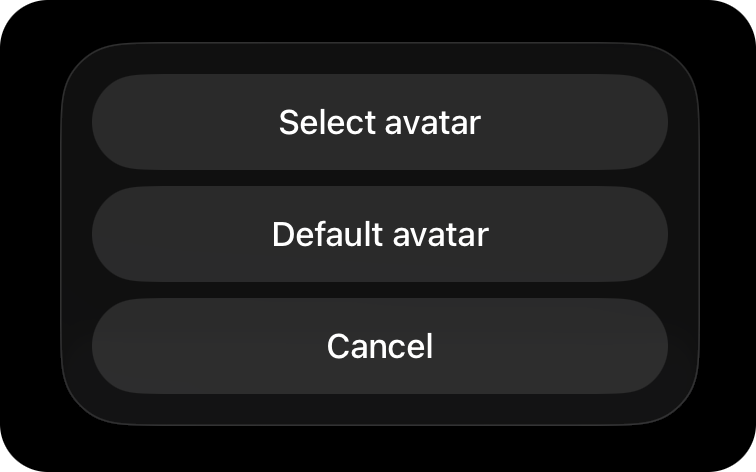
Figure 21. Settings avatar menu
Click the Select avatar option to select an image from your photo library or files on your device. The app will show the standard image selection dialog. Supported image formats for avatar selection: BMP, JPEG, and PNG. Click the Default avatar option to reset the avatar picture to the default image. Once you select it, your new avatar image is automatically applied and sent to all devices running the alfacast app within your local network. The Cancel button closes the Settings avatar menu.
Alfaname is the name of your network node. This field looks like a nickname. This field has certain character requirements. Click this field to edit it and review the requirements.
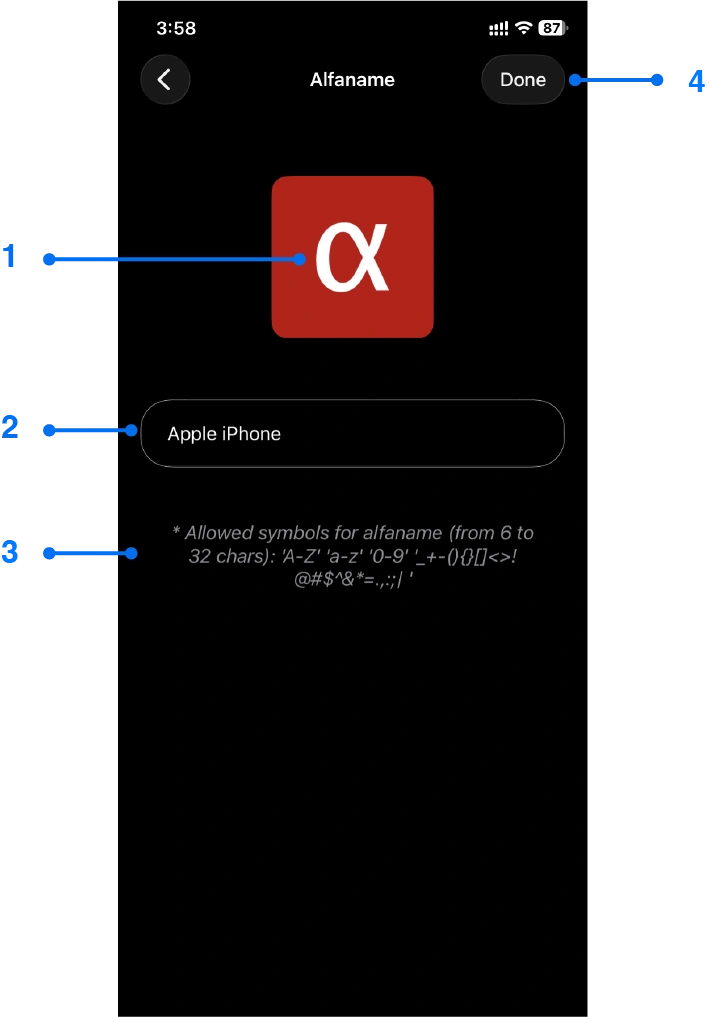
Figure 22. Alfaname window
The Alfaname window contains the following elements:
1 – Default menu image button. Click to display Settings default menu.
2 – Current alfaname value.
3 – Description indicating the length and character limits used for alfaname.
4 – Done button.
Click on the Current alfaname value to modify it, the application will display the keyboard for entering text. Enter text using your device’s keyboard and click the Done button to apply the changes.
To display the instruction built into the application, click the Instruction option. We already provided information on the instruction built into the application earlier in this user manual.
Using the Audio capture option, you can enable or disable audio capture. Click on the Audio capture option to display the following Audio capture window.
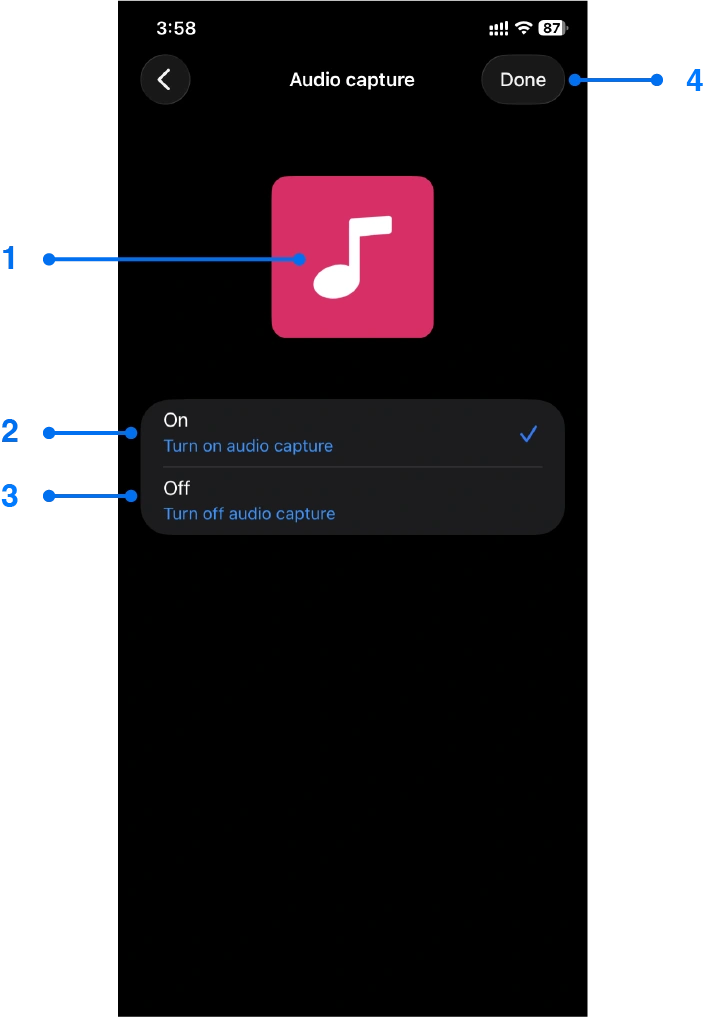
Figure 23. Audio capture window
The Audio capture window contains the following elements:
1 – Default menu image button. Click to display Settings default menu.
2 – Turn on audio capture option.
3 – Turn off audio capture option.
4 – Done button.
If you disable audio capture, the app will only capture the device’s screen without audio support. Please note: screen capture cannot be disabled. The application captures only system sound.
It is also possible to select the required video resolution of the encoder using the Video resolution option. Click on the Video resolution option to display the following Video resolution window.
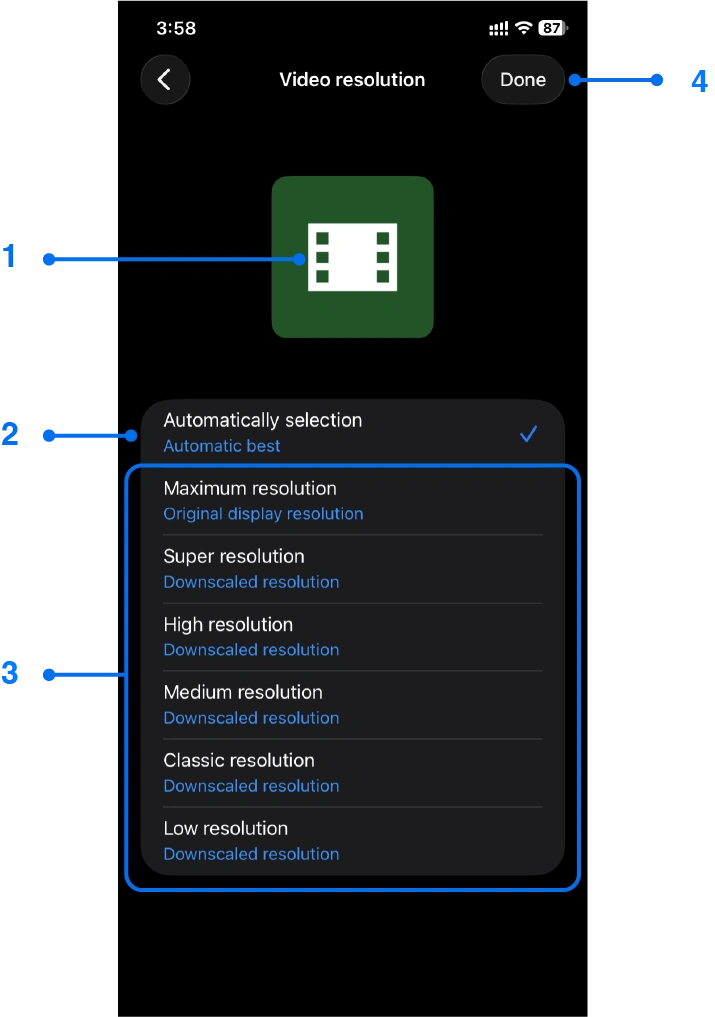
Figure 24. Video resolution window
The Video resolution window contains the following elements:
1 – Default menu image button. Click to display Settings default menu.
2 – Automatic best option.
3 – List of downscaled video display resolutions.
4 – Done button.
This list includes video resolutions up to the maximum physical resolution of the display. If you select Automatic best option, the application will automatically determine the best resolution from all available ones. In fact, the exact resolution of the frame buffer (this buffer is used for image capture) cannot be determined in advance, so the resolutions in the list are presented as names: Maximum resolution, Super resolution, High resolution, Medium resolution, Classic resolution, Low resolution. The regular version of the application limits this value to the minimum resolution with 30 Hz frequency. The extended version of the application supports resolution up to 4K Ultra HD (3840×2160) with a frequency of 60 Hz.
Another useful feature is bitrate policy. Click on the Bitrate policy option to display the following Bitrate policy window.
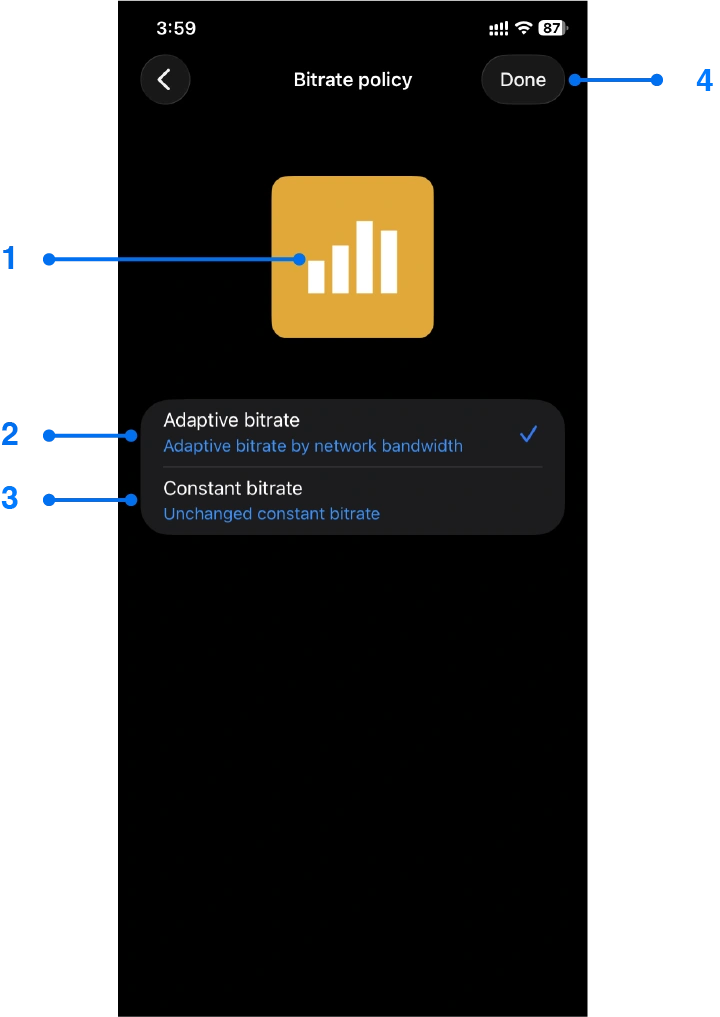
Figure 25. Bitrate policy window
The Bitrate policy window contains the following elements:
1 – Default menu image button. Click to display Settings default menu.
2 – Adaptive bitrate policy.
3 – Constant bitrate policy.
4 – Done button.
The bitrate policy can be adaptive or constant. Adaptive bitrate policy – adjusts the bitrate to network conditions. With the Adaptive bitrate policy enabled, the bitrate will change dynamically depending on the maximum network bandwidth. Constant bitrate policy – a consistent, high bitrate throughout the entire broadcast. Constant bitrate policy is useful when you are confident in your network’s bandwidth and always want excellent video quality. This option has an effect only for single channel broadcasting mode and does not affect multichannel mode. The multichannel streamer always operates with an Adaptive bitrate policy. The regular version of the application always uses the Adaptive bitrate policy.
The Playback method option can be used to reduce or increase the delay time between the streaming device and the viewer. Click on the Playback method option to display the following Playback method window.
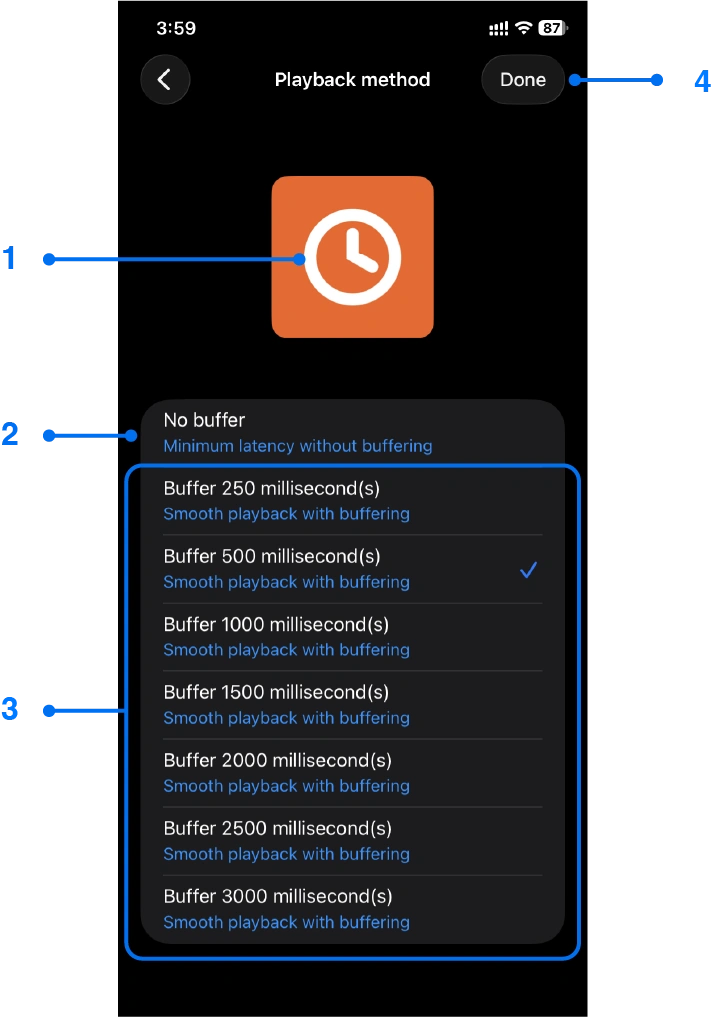
Figure 26. Playback method window
The Playback method window contains the following elements:
1 – Default menu image button. Click to display Settings default menu.
2 – No buffer delay. Minimum latency without buffering.
3 – List of playback delay values.
4 – Done button.
The delay time is adjustable from 0 (No buffer) to 3000 milliseconds (3 seconds). This is an approximate delay time. We recommend using a 500 milliseconds buffer. The No buffer option provides minimal delay between the broadcasting and viewing devices, but synchronization problems and other audio and video artifacts may appear. In the regular version of the application, this option is always set to 3000 milliseconds.
The Video decoder option displays the video decoders supported by the application and the iOS. Click on the Video decoder option to display the following Video decoder window.
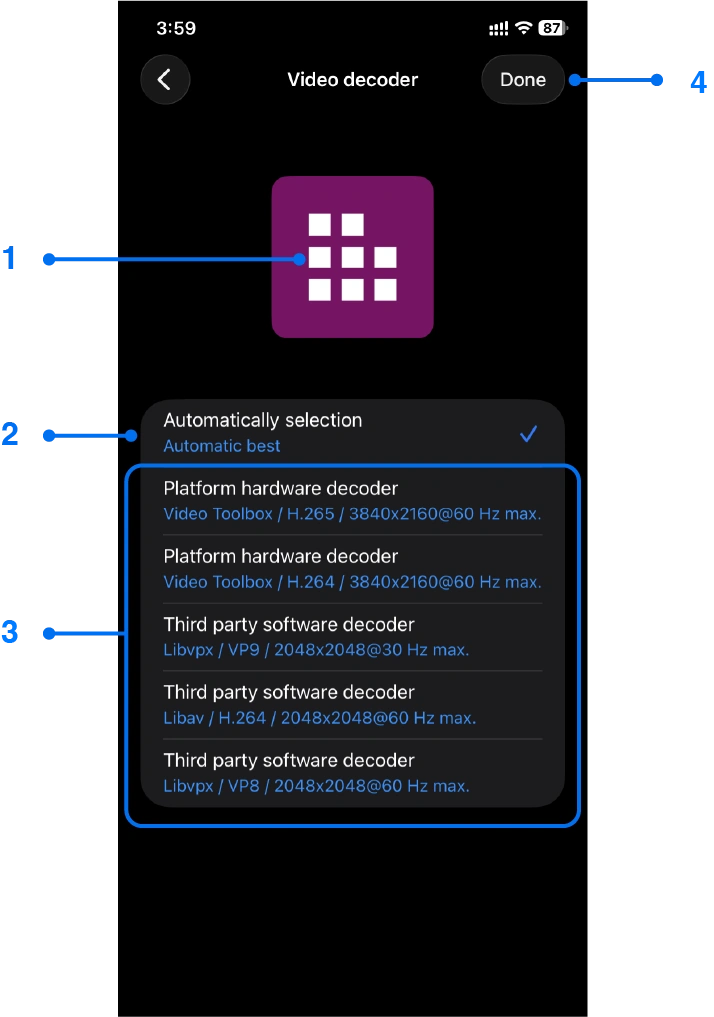
Figure 27. Video decoder window
The Playback method window contains the following elements:
1 – Default menu image button. Click to display Settings default menu.
2 – Automatic best option.
3 – List of video decoders.
4 – Done button.
You can select any video decoder from the list and evaluate the image quality and bitrate of the stream. If you select a video decoder that is supported by your iOS device, but there is no similar video encoder on the streamer side, the application on the streamer side will automatically select the video encoder. In any case, the application automatically selects a video encoder on the streamer’s side. The figure above shows the list of video decoders for this specific device model. Each device will have its own list of video decoders. The regular version of the application limits this value to SD quality (768×768) with a frequency of 30 Hz. The extended version of the application allows viewing content up to 4K Ultra HD (3840×2160) quality with a frequency of 60 Hz.
About
Information about the program can be found in the About window. To display the About window, press About button in the Main menu. We provide the following information about our iPhone screen mirroring app: version, information about our project and website address. We also provide information about the open source libraries used, authors, and the text of the open source licenses.
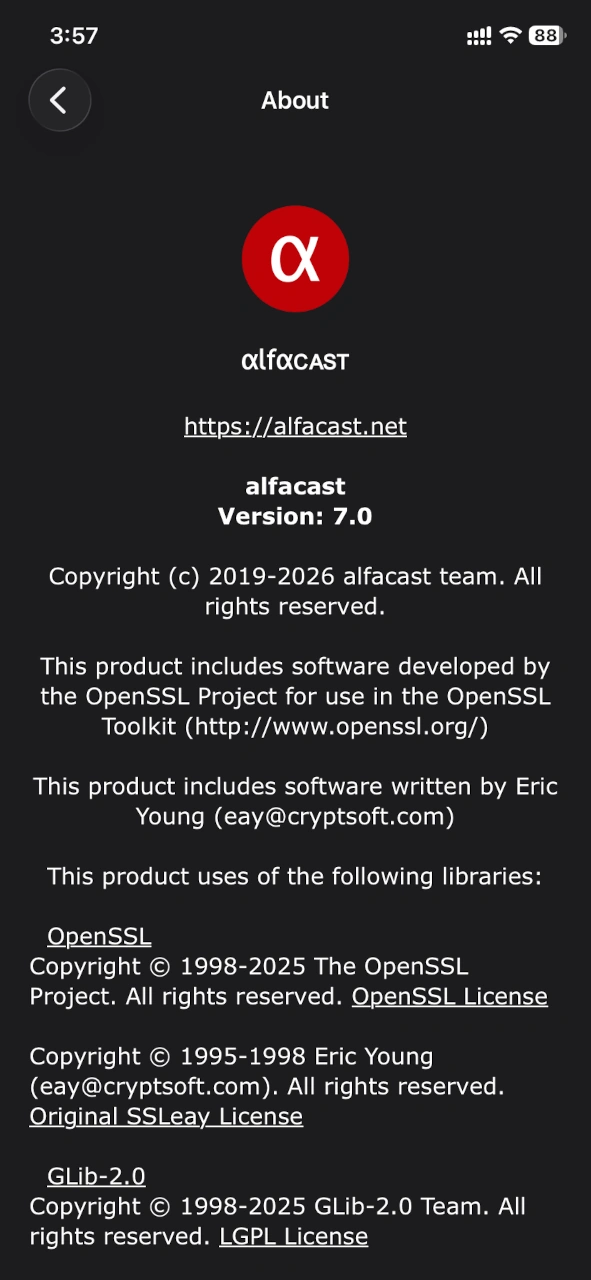
Figure 28. About window
Please read the program information if you are interested in details about our software.
Conclusion
We have fully described and reviewed alfacast application. Overall, the application is intuitive and easy to use. Alfacast app for iPhone screen mirroring offers a wide range of features and functionality. There is a real-time streaming function. There is audio and video playback function. The connection is encrypted and secure. Each network node can broadcast its desktop content to multiple devices simultaneously. The extended version of the application has high quality video streaming feature up to 4K Ultra HD, it has low latency playback, more secure connection and other benefits. If you want to learn more about the application, you can watch the video on our YouTube channel.